Firebase credentials (Android)
How to generate the Firebase service account and add it to PushMesh, with screenshots — what Android needs for push to go out.
Firebase credentials (Android)
On Android, the thing that delivers the notification is Firebase Cloud
Messaging (FCM), by Google. For PushMesh to send on behalf of your app, it
needs the Firebase service account: a .json file you generate in the
console and paste into the panel. Without it the send returns 200 but nobody
receives.
It takes five minutes. Two sides: generate in Firebase and paste into PushMesh.
1. Pick the project in Firebase
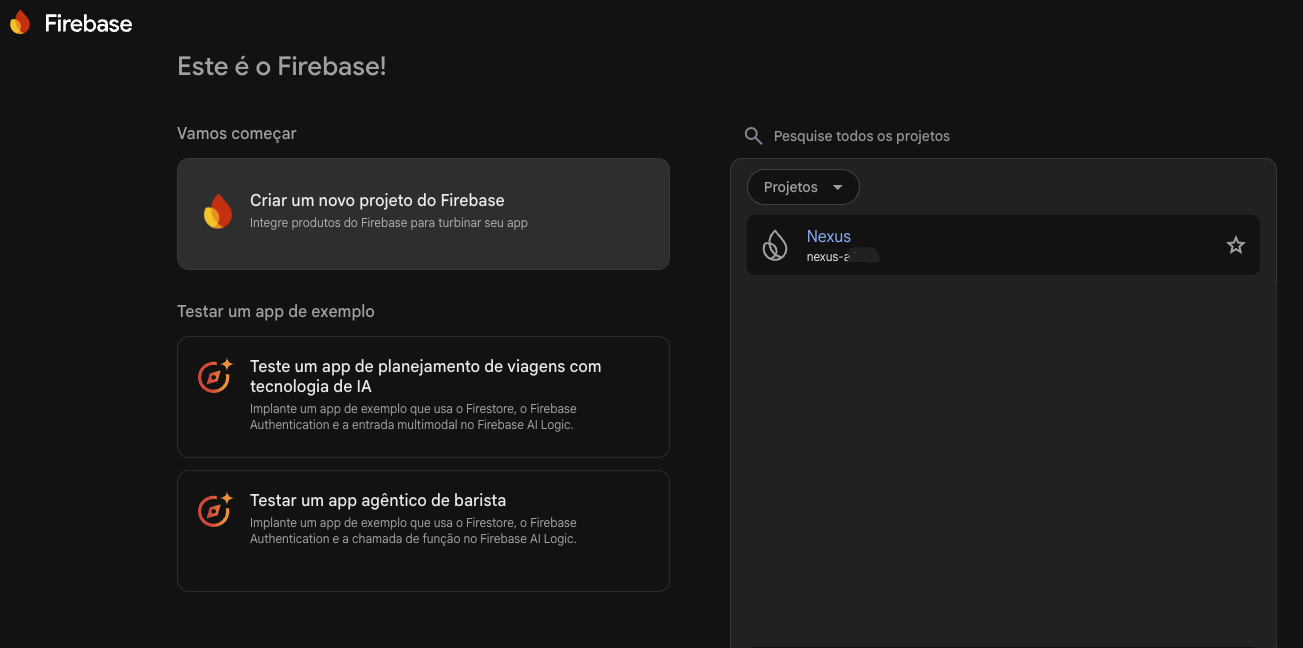
Open the Firebase console and select your app’s project (or create one via Create a new Firebase project).
2. (Optional) Download google-services.json
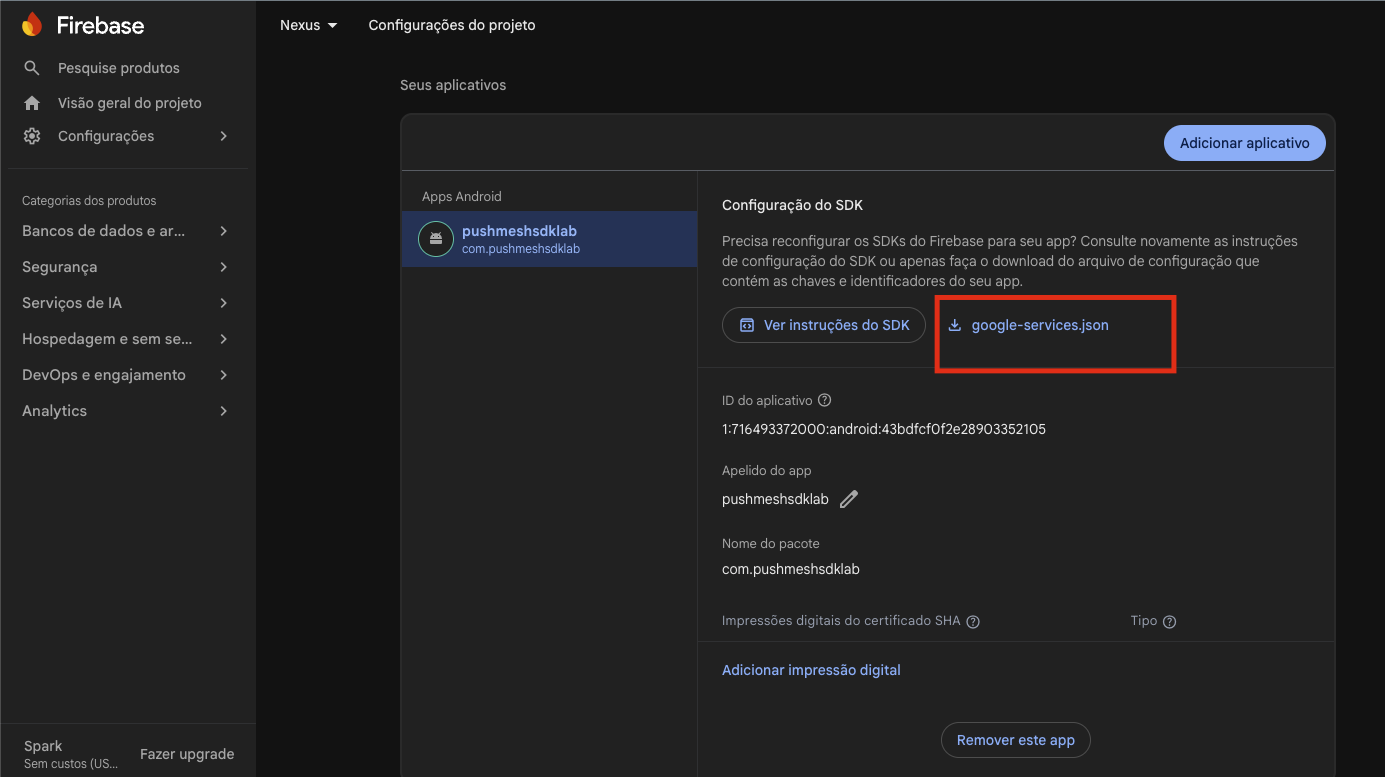
Under Project settings › Your apps, in the Android app, the google-services.json button downloads the file with your app’s public parameters (App ID, package name). It is optional in PushMesh and not a credential — it only lets PushMesh know your app.
3. Generate the service account private key
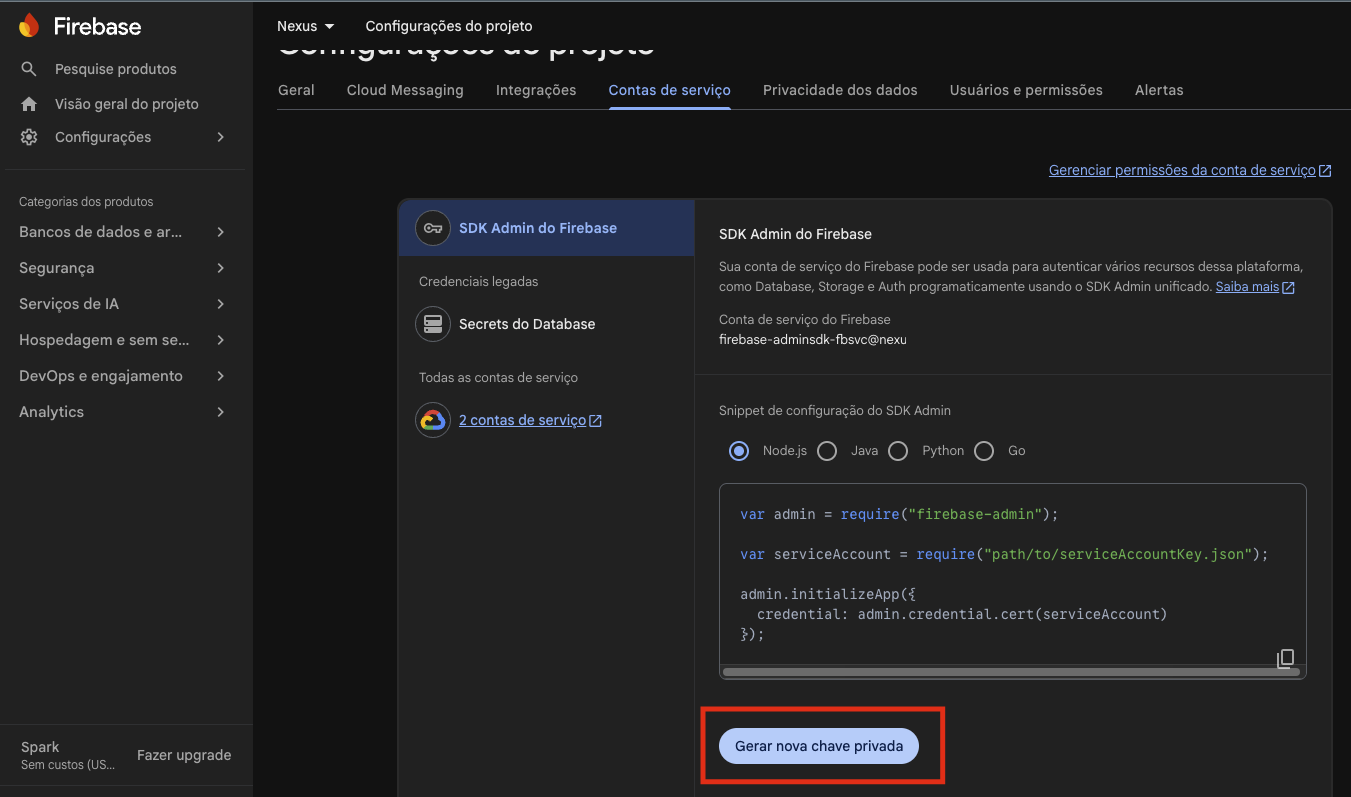
Still under Project settings, open the Service accounts tab and click
Generate new private key. Confirm: the browser downloads a .json file.
This
.jsonis what authenticates sending. It starts with{"type":"service_account", ...}and carriesproject_id,client_email, andprivate_key. Keep it safe: it is a secret.
4. Paste it into PushMesh
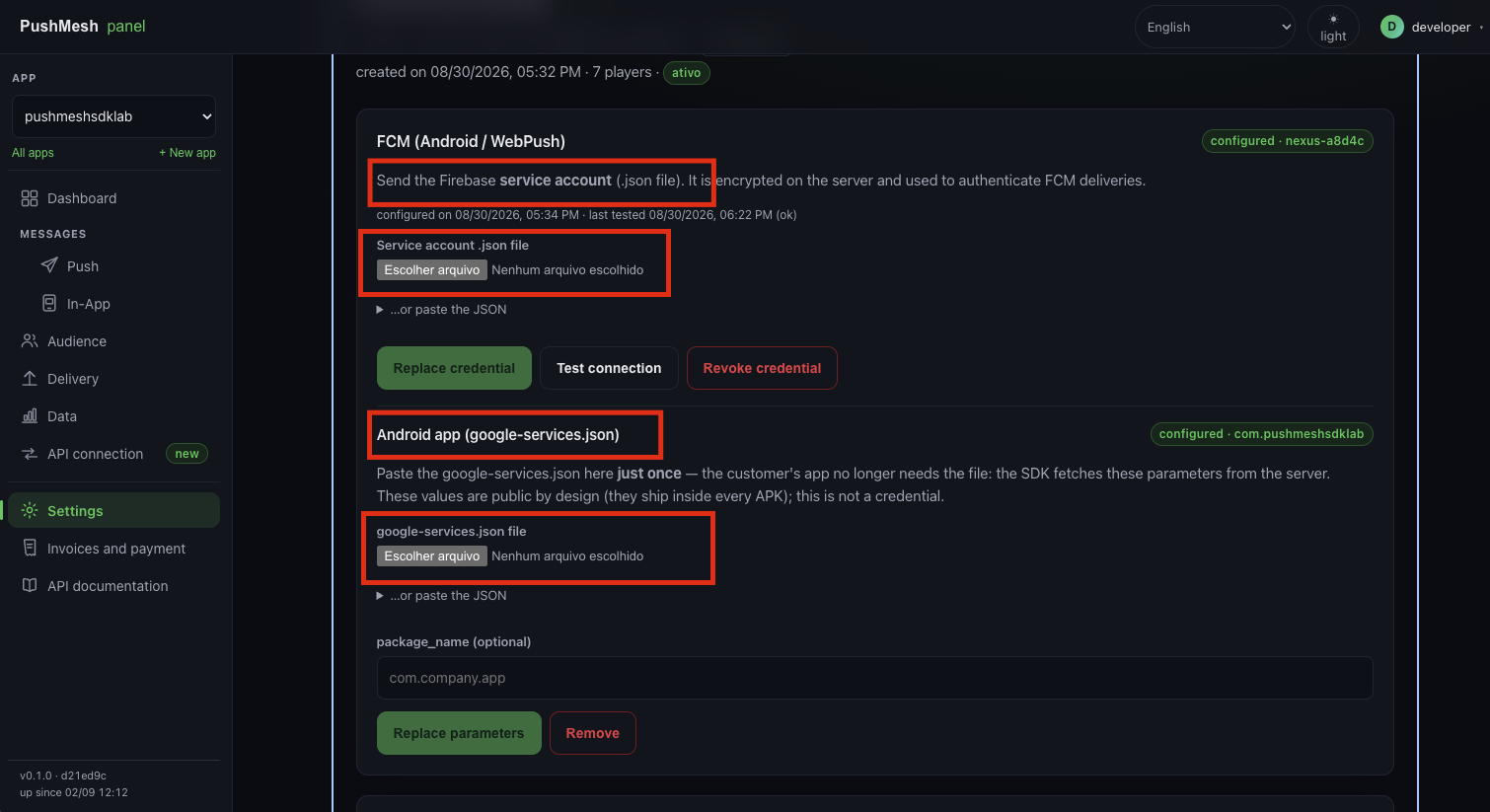
At https://app.pushmesh.io, open the app and go to the FCM (Android /
WebPush) section. Under Service account .json file, upload the file from
step 3 (or use …or paste the JSON) and click Save credential. Then click
Test connection — green confirms Android is ready.
On the same screen, below, you can paste the google-services.json from step 2 (optional). From there, Android push goes out.
FAQ
Do I need google-services.json? Not to send. The service account (step 3) is what authenticates. google-services.json is optional.
I rotated the key in Firebase. Generate a new one (step 3) and use Replace credential in the panel.
I sent a push and successful came back 0. It is almost always the
credential: missing, wrong project, or revoked. Run Test connection again.
What about iOS? iOS uses APNs, not FCM. See APNs credentials (iOS).